Users and roles
On this page, you add all the users who need to see the widget.
Roles
The system has two built-in roles: Administrator and Manager. You cannot delete or rename these roles.
Administrator: works with the widget on the site, has full access to the admin interface, and can add or delete rules, users, and tags.
Manager: only works with the widget and has no permissions in the admin interface.
Adding a custom role
You can add your own roles. Use them to customize the widget information for different groups of employees.
For example, say you have several employees who handle logistics. They need to see certain product data that your sales managers do not need.
So in the rules for logistics staff, you can simply specify
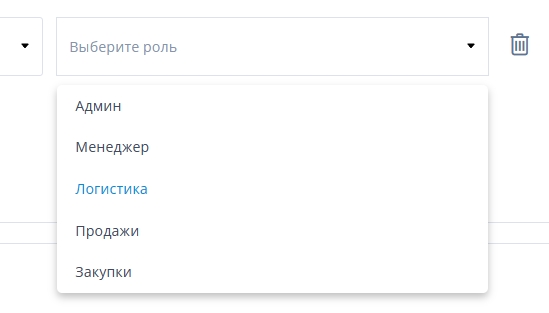
and then ONLY users with the "Logistician" role will see the result of that rule.
All roles you add have the “Manager” permissions. That is, these employees can only see the widget and cannot change rules or texts.
Users
For a new user to be able to work with the widget, you need to add them in this section.
The employee will use the details you enter here to sign in to the widget.
Creating a user
To create a new user, go to the “Users” section in the top horizontal menu and click the “Add user” button. Then fill in the required fields:
- Full name
- Role
Administrator/user, plus custom roles on the PRO plan and above. - Access
Whether the account is active or inactive - Login
- Password
User roles
By default, Contexta has two roles: Administrator, with full access to creating and editing rules, and Manager, who can only use the information in the context block on the site. Signing in to Contexta with a login and password is what distinguishes a company employee from an ordinary site visitor and shows them the Contexta block.
On the PRO plan and above, you can create custom roles with restricted access to information.
Editing a user
When you hover over a user, a “pencil” icon appears. Click it to edit the user's details, including their password.

User sign-in on sites
When an employee signs in to CONTEXTA, the system registers them on all the sites you have added. If registration succeeds, they will see the following image:
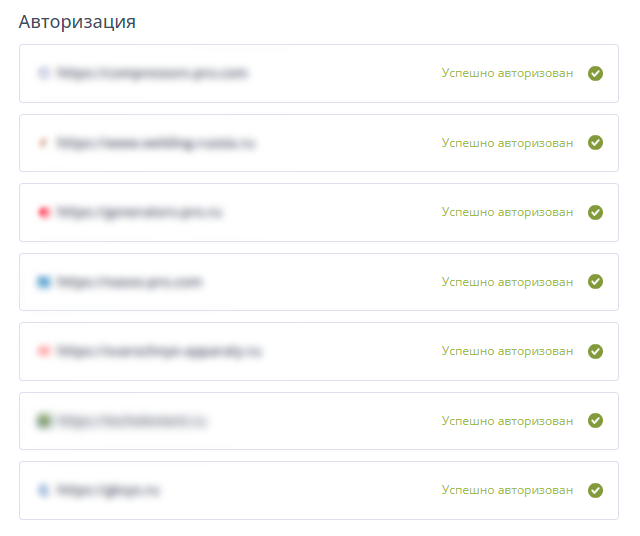
This image means that the manager will see the hidden layer widget on all your sites where CONTEXTA is installed.