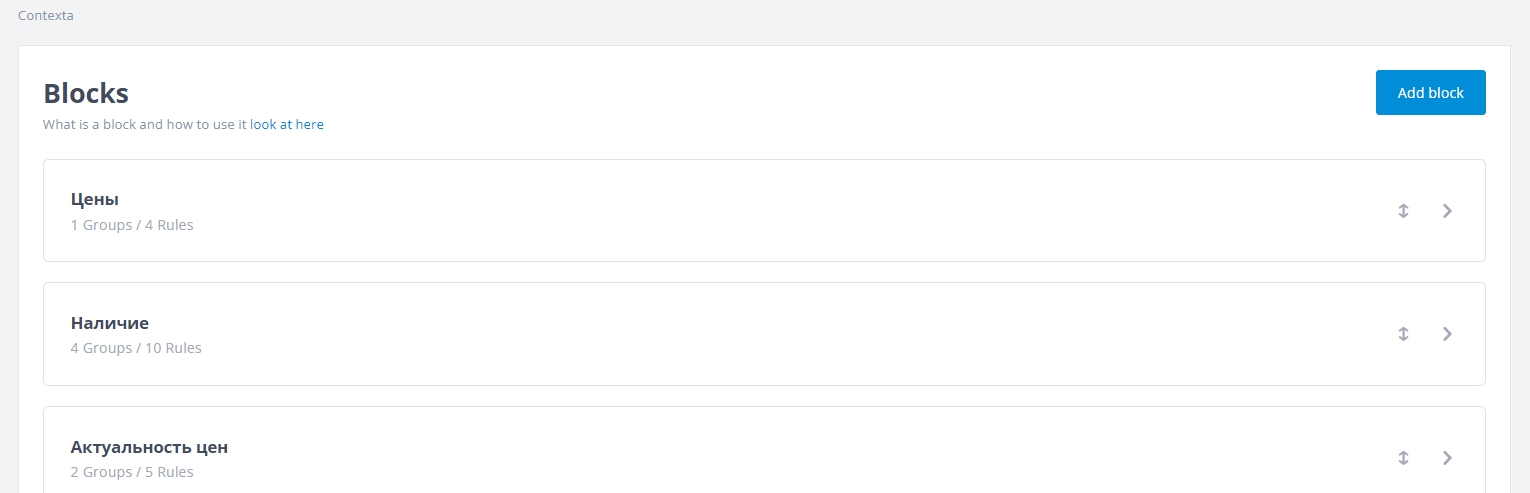
Blocks
What is a block
On this page you define which information blocks your widget consists of.
Blocks split your information into logically related sections so that information of the same type always appears in the same place.
This way users can find information quickly, because they always get it in the same place in the widget.
So the structure for working with your data is as follows:
- First, you split the information into large blocks (“prices go here, logistics here, links to internal catalogs here”)
- Inside these blocks you create rules that display specific information, and you can organize those rules into groups to make them easier to work with.
You can drag blocks to change their order. The order of blocks in the admin interface is the order in the widget.
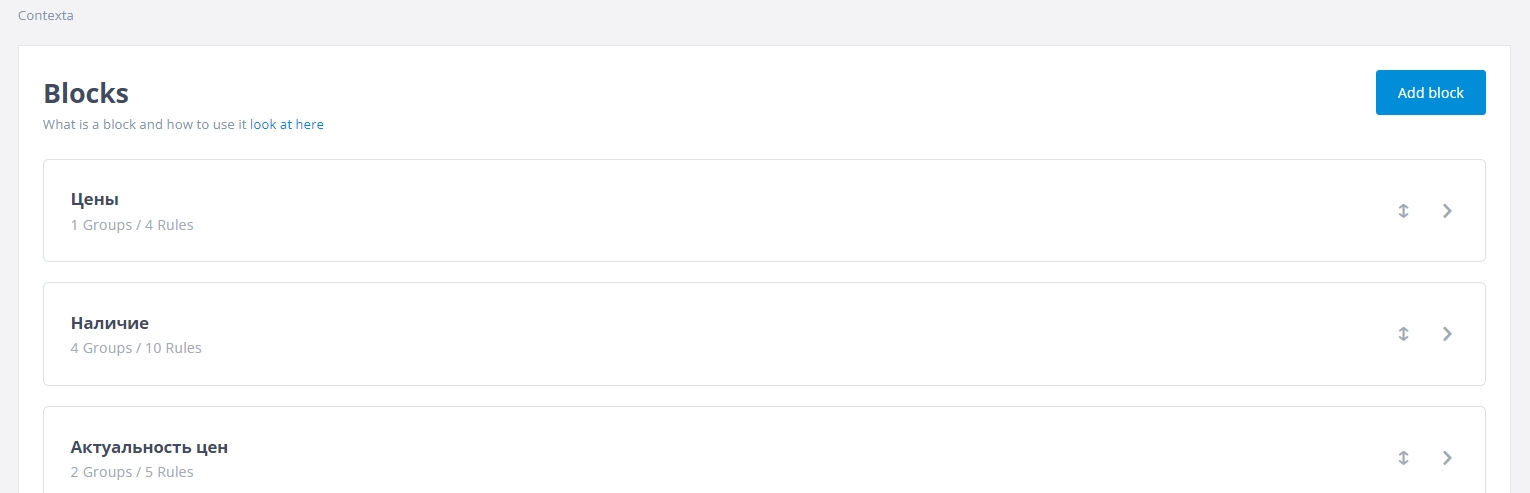
If you select the “Show block name” checkbox, the block is displayed with its name in the widget.
Performance
Contexta processes all blocks at the same time. This means the total time needed to build the widget equals the time of the slowest block.
If a page has 5 blocks, four with 5 rules each and one with 500 rules, you will wait quite a while for the widget to render, because the block with 500 rules takes a long time to process.
If you split that block into two blocks of 250 rules each, the widget builds in half the time, because all blocks are rendered simultaneously.
Adding and configuring a block
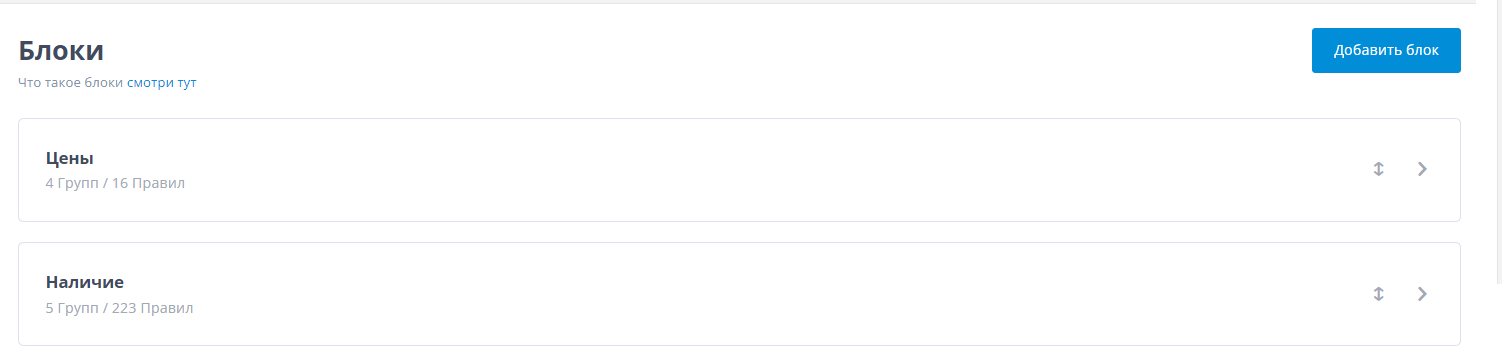
To add a block, open the “Blocks” section in the top horizontal menu and click “Add block”.
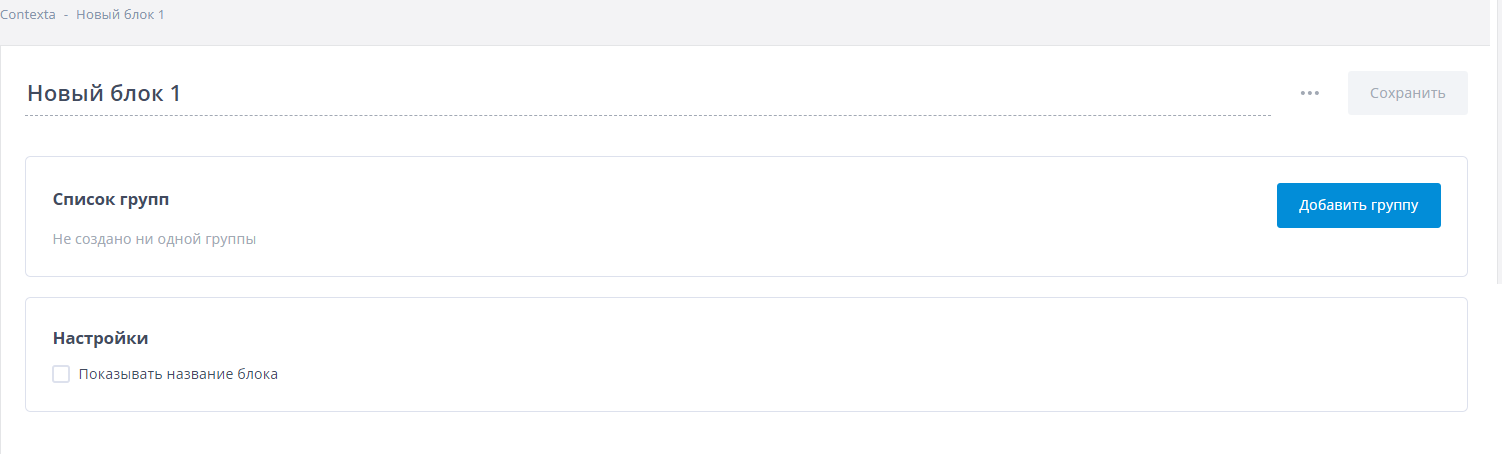
Enter a name for the block. When you create a block, you can also create one or more rule groups in it, but you can skip this step and come back to it at any time.
If you select “Show block name”, the block name is displayed in the context block on your site.
You can drag blocks to change their order. The order of blocks in the admin interface is the order in the widget.